 Template to Launch
Part 3 of 9
Saving, previewing and publishing
How a change moves from the editor to your live site, and why saving is not the same as publishing.
Last reviewed
In a nutshell
- Your builder keeps two copies of your site: the one you edit and the one visitors see.
- Save keeps your work. Publish puts it on the web.
- Preview shows you the result first, in private.
Two copies of one site
When you open the editor, you work on a draft. Visitors don't see it. They see the last version you published.
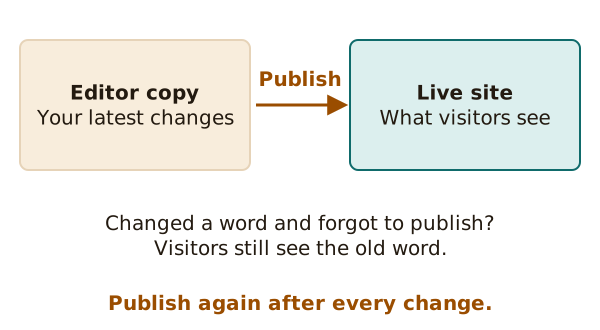
Wix says it plainly: saving won't make your changes live.[1] Saved changes, and changes you can only see in preview, won't show on the live site until you publish them.[1]
That catches many beginners. You fix a typo, save, and the typo is still there for everyone else.
The usual order
Most builders follow the same short path.
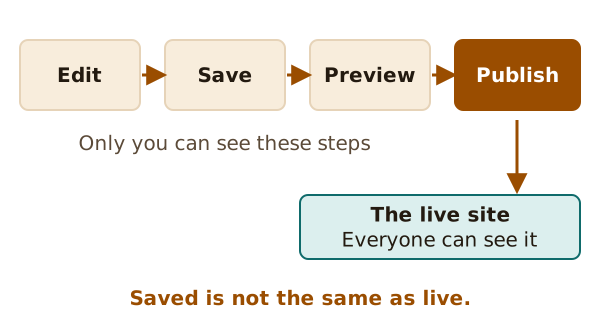
- Edit. Change words, pictures and sections.
- Save. Your work is kept safe. The public can't see it yet.
- Preview. The builder shows the page as visitors would see it. In Wix, there is a Preview button for this.[1]
- Publish. Now the site is live. Once you publish, your site is on the internet for anyone to see.[1]
You can preview before or after you publish.[1] Preview shows the page before visitors can see it, so use it often.
Editing a live site
Publishing is not a one-time event. You can keep editing after you publish.[1] Each time you want a change to go live, you publish again.[1]
WordPress.com puts the same idea at the page level. You can save a page or post as a draft, publish it when it's ready, and choose who can see it.[2]
When something goes wrong
Two helpful things to know:
- Old versions. Wix says you can view and restore an older version of your site at any time.[1] Other builders keep a history too, though the name and the reach differ.
- Stale changes. If your change isn't on the live site, the usual cause is that you didn't publish. Check that first.
A quick habit helps. Make your change, save, preview, publish. Then open your real address in a new window and look.
Phones show pages differently from computers. That's the next topic: mobile layouts.
Sources
- Wix Editor: Publishing Your Site, Wix Help Center (accessed 2026-10-22)
- How To Customize Your Site With The WordPress Editor, WordPress.com Support (accessed 2026-10-22)