 Template to Launch
Part 2 of 9
Templates, sections and blocks
How a template, its sections and the blocks inside them fit together, and what happens to your content when you change template.
Last reviewed
In a nutshell
- A template is a ready-made page design.
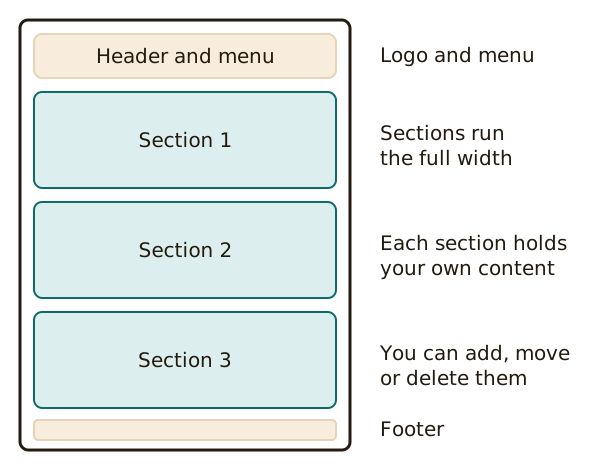
- A template is built from sections, stacked from top to bottom.
- Each section holds blocks: a heading, some text, an image, a button.
A template is a design you fill in
A template is a page layout with empty places for your words and pictures. The builder combines the template with your content to make each page. All the pages then share a similar look.[1]
Some builders say theme instead of template. WordPress.com does. It describes a theme as your site's visual design and overall layout.[2] The idea is the same.
Sections stack up the page
A section is one band across the page. A page might have a banner at the top, then a row of services, then a contact band.
In Wix, a section spans the full width of the visitor's browser.[3] You can add a blank section and start from scratch. Or you can pick a ready-made design.[3] Those ready-made ones come with sample items already in place.[3]
That is why builder sites feel quick to make. You add, move and delete bands instead of drawing a page from nothing.
Blocks fill each section
Inside a section sit the smaller pieces. WordPress calls each piece a block. Every bit of content in its editor is one.[4]
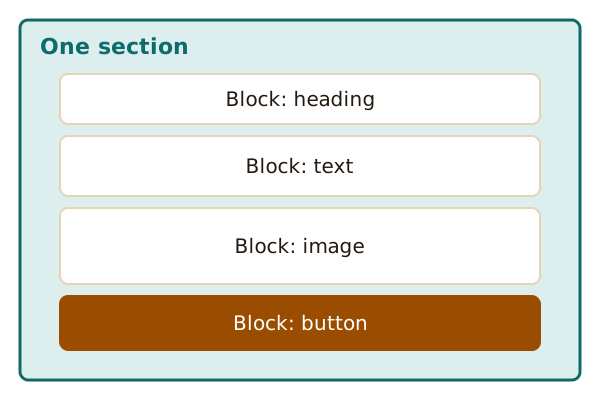
Other builders use other words, such as "element" or "widget". Look for the add button and you'll find them.
Design and content are kept apart
This split is the best thing about templates. The design belongs to the template. The words and photos are yours.
Because of that, you can often switch designs and keep your content. WordPress.com says you can change from one theme to another without losing your content.[2]
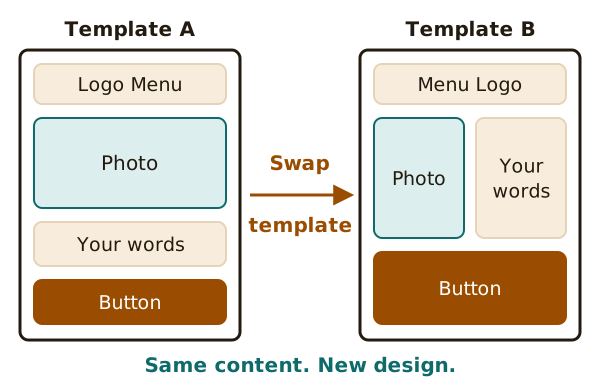
Not every builder works this way. Some ask you to rebuild sections after a switch, so look before you start.
Two levels of editing
WordPress.com splits editing in two. Its Site Editor changes the design of the whole site. Its Block editor changes the content of one page or post.[5]
Many builders have the same split in some form. Some changes touch every page. Others touch only the page you're on.
Next, see how a change goes from your screen to the web: saving and publishing.
Sources
- Web template system, Wikipedia (accessed 2026-10-22)
- Themes in WordPress, WordPress.com Support (accessed 2026-10-22)
- Wix Editor: About Sections, Wix Help Center (accessed 2026-10-22)
- Work with blocks, WordPress.org Documentation (accessed 2026-10-22)
- How To Customize Your Site With The WordPress Editor, WordPress.com Support (accessed 2026-10-22)